Help
AI Search Pro Documentation
Complete guide to configuring and using the AI Search Pro plugin for WordPress
General Settings
Core configuration for AI-powered search functionality
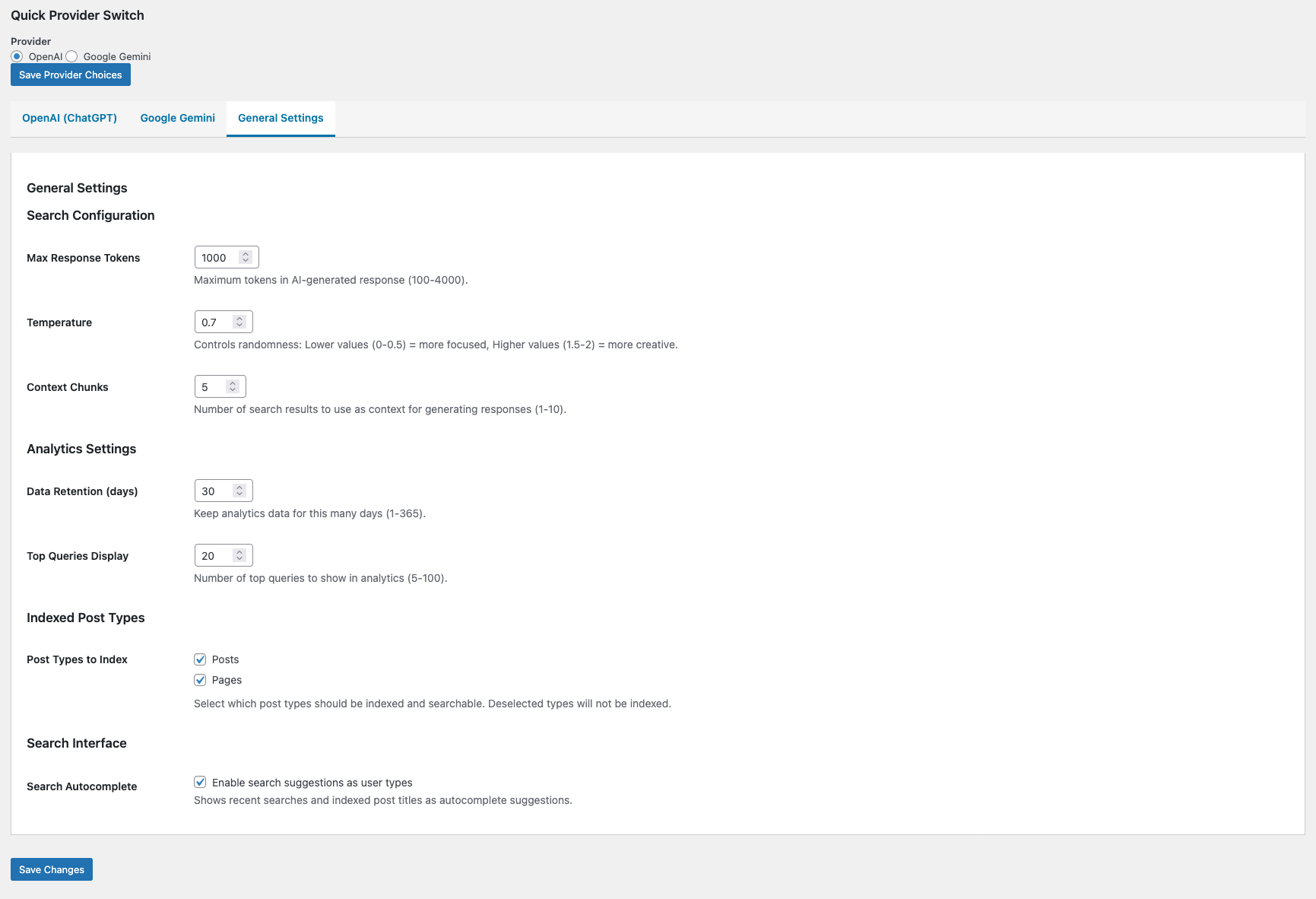
Overview
The General Settings panel is your command center for AI Search Pro. This is where you enable the plugin, select your preferred AI provider, and configure how search results are displayed to your visitors.
Configuration Options
-
Enable AI Search
Master switch to activate or deactivate AI-powered search across your entire site.
-
AI Provider
Choose between OpenAI (GPT models) or Google Gemini as your AI backend.
-
Response Mode
Select conversational AI answers or enhanced traditional search results.
-
Answer Length
Control how detailed AI responses should be (brief, moderate, or comprehensive).
-
Fallback Behavior
Define what happens when AI cannot find relevant content to answer a query.
OpenAI Configuration
Connect and configure OpenAI GPT models for intelligent search
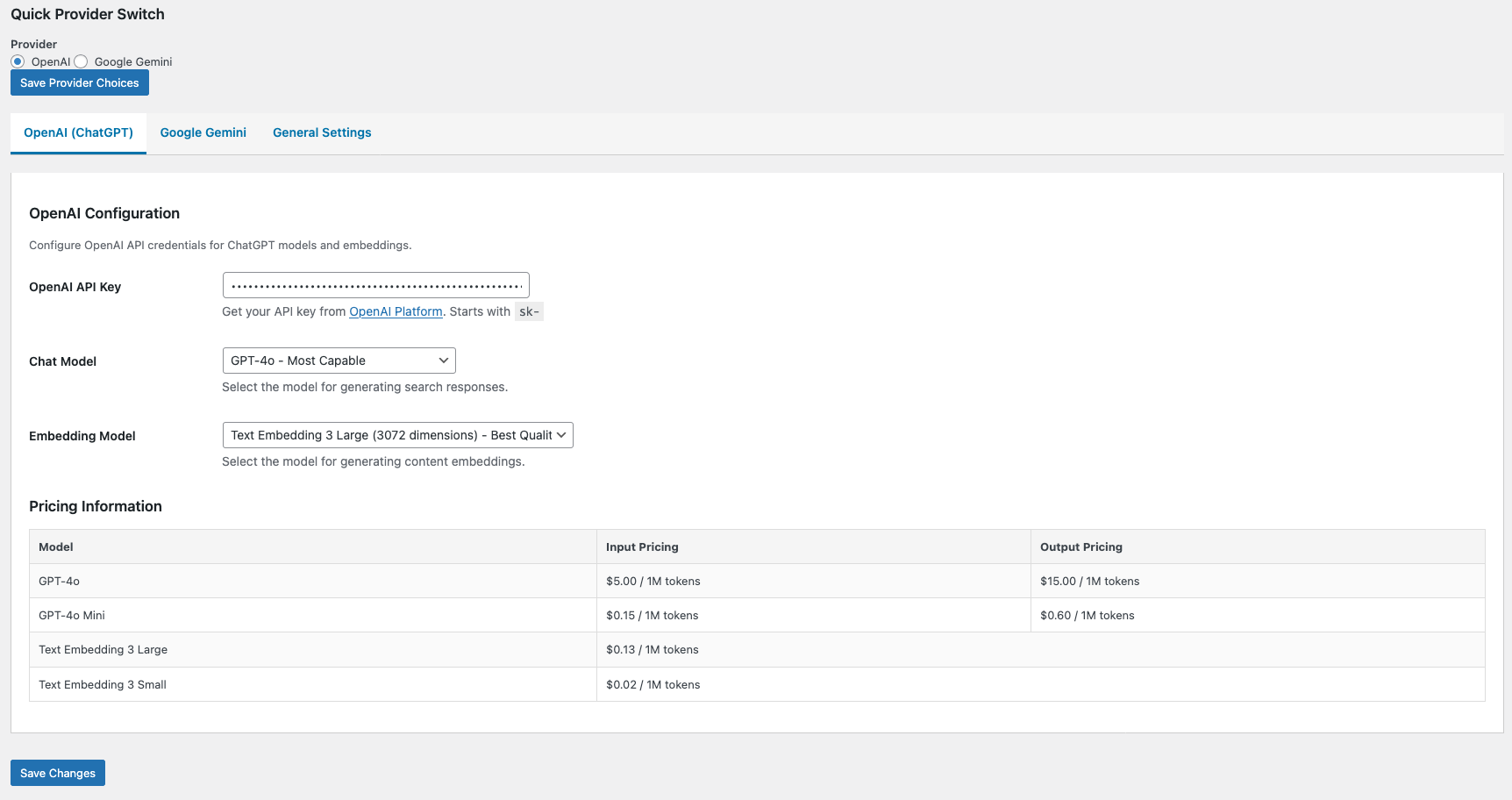
Overview
Configure your OpenAI integration to leverage the power of GPT models. Enter your API credentials, select your preferred model, and fine-tune generation parameters for optimal results.
Configuration Options
-
API Key
Your OpenAI API key from platform.openai.com. Stored securely with encryption.
-
Model Selection
Choose from GPT-4o, GPT-4, GPT-4-turbo, or GPT-3.5-turbo based on your needs and budget.
-
Temperature
Adjust creativity (0.0 = precise/deterministic, 1.0 = creative/varied). Recommended: 0.3-0.7 for search.
-
Max Tokens
Maximum length of AI responses. Higher values allow longer answers but increase API costs.
Google Gemini Configuration
Set up Google’s Gemini AI for powerful search capabilities
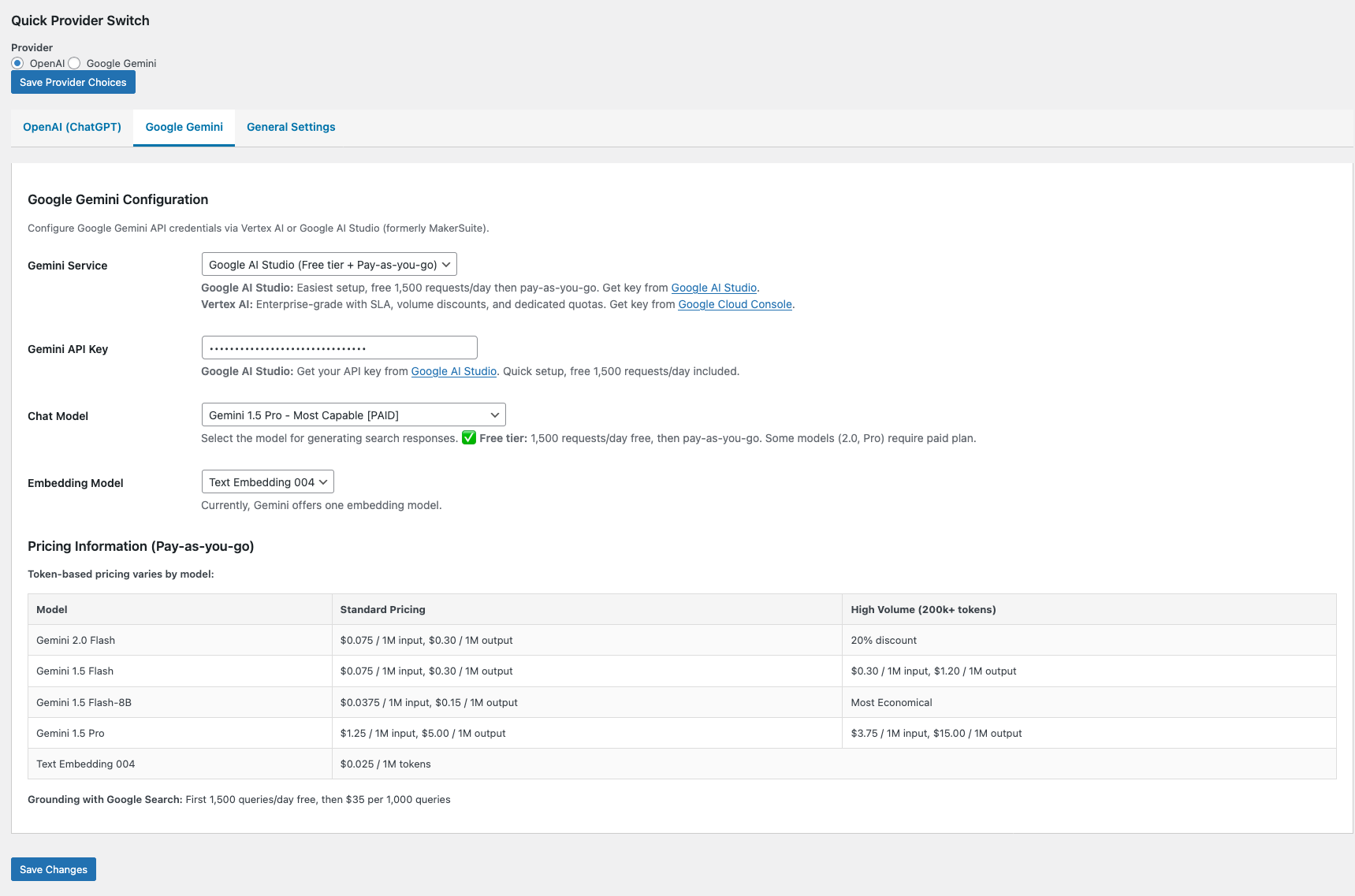
Overview
Google Gemini offers competitive pricing and excellent performance for content-based queries. Configure your Gemini API access and customize safety settings to match your site’s requirements.
Configuration Options
-
API Key
Your Google AI Studio API key from aistudio.google.com.
-
Model Selection
Choose Gemini Pro for text or Gemini Pro Vision for multimodal capabilities.
Analytics Dashboard
Monitor search performance, usage patterns, and API costs
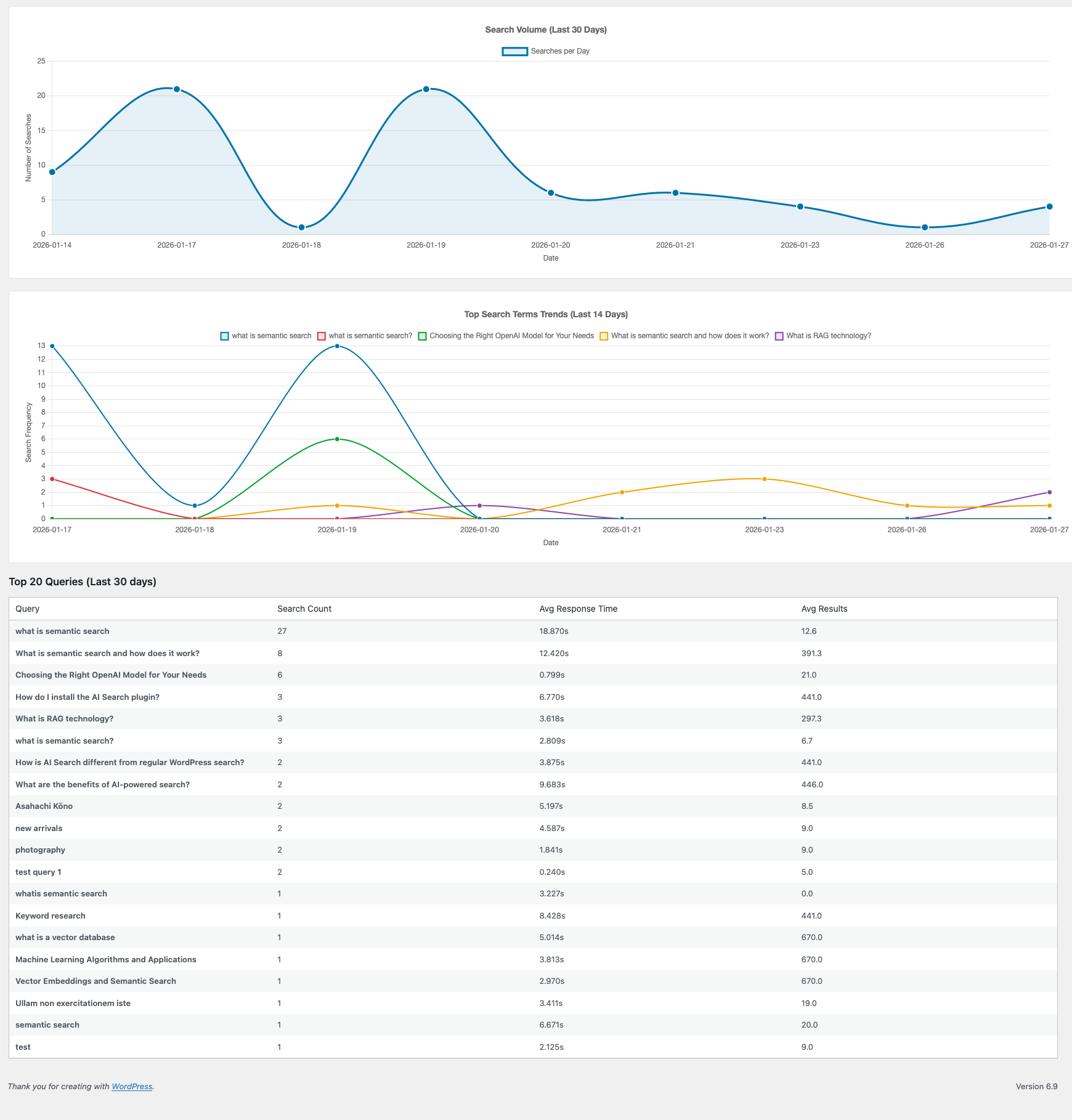
Overview
The Analytics Dashboard provides comprehensive insights into how visitors use AI search on your site. Track usage metrics, identify popular queries, and monitor API costs to optimize your search implementation.
Available Metrics
-
Total Searches
Track the total number of AI-powered searches over time with trend analysis.
-
Popular Queries
See the most frequently searched terms to understand user intent.
-
API Usage & Costs
Monitor token consumption and estimated monthly costs by provider.
-
Response Times
Analyze average query processing speed and identify bottlenecks.
-
Content Indexing
Configure which content is indexed for AI-powered search
Overview
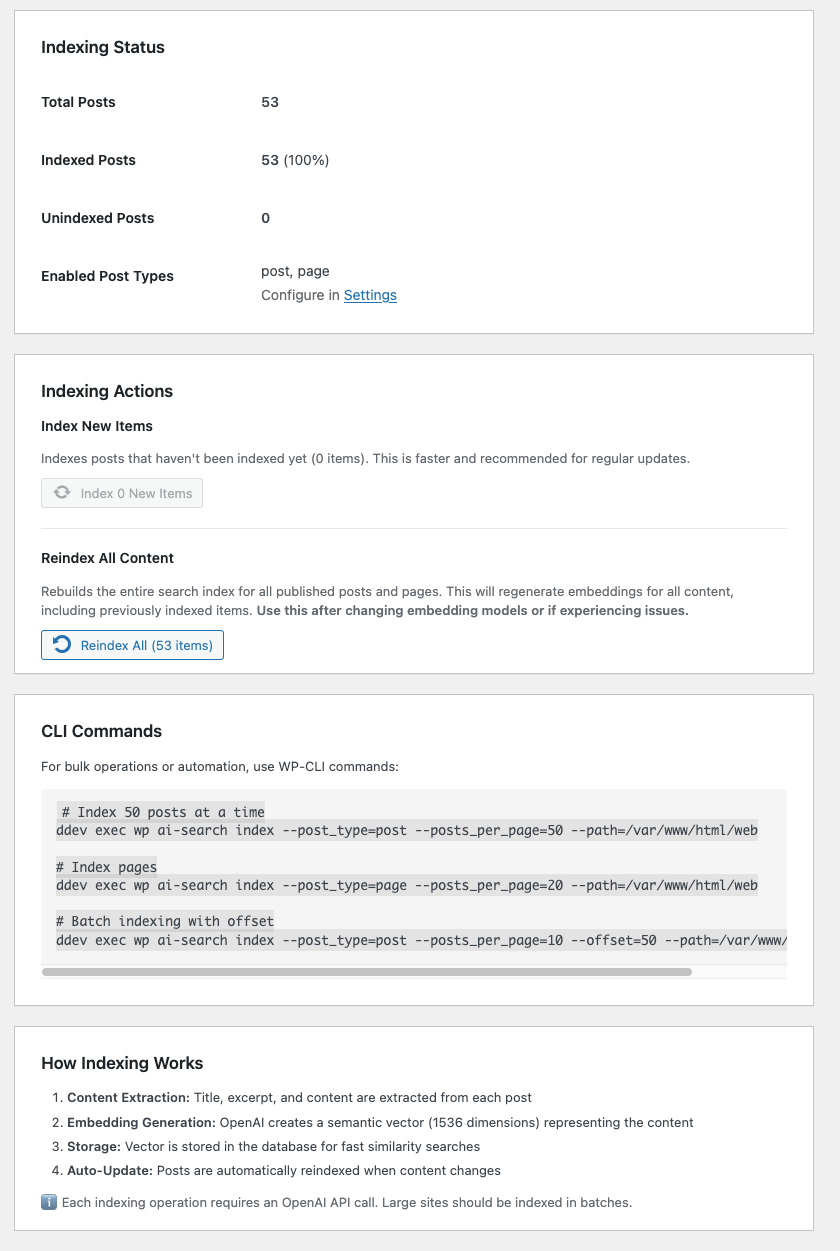
The Content Indexing panel controls how your WordPress content is processed and stored for RAG (Retrieval-Augmented Generation). Proper indexing is essential for accurate, relevant AI search responses.
Configuration Options
-
Post Types
Select which content types to index: posts, pages, products, or custom post types.
-
Taxonomies
Include categories, tags, and custom taxonomies in your search index.
-
Reindex Content
Manually trigger a full content reindex when needed (after major content changes).
-
Index Status
View current index size, document count, and last update timestamp.
Getting Started Checklist
Enter your OpenAI or Gemini API key and test the connection.
Choose which post types and taxonomies to include in AI search.
Click “Reindex Content” to build your initial search index.
Turn on the master switch in General Settings and test your search.
Need Help?
Our support team is ready to assist you with installation, configuration, or troubleshooting.