Docs
AI Search Pro Settings Guide
Visual walkthrough of the plugin configuration options
General Settings
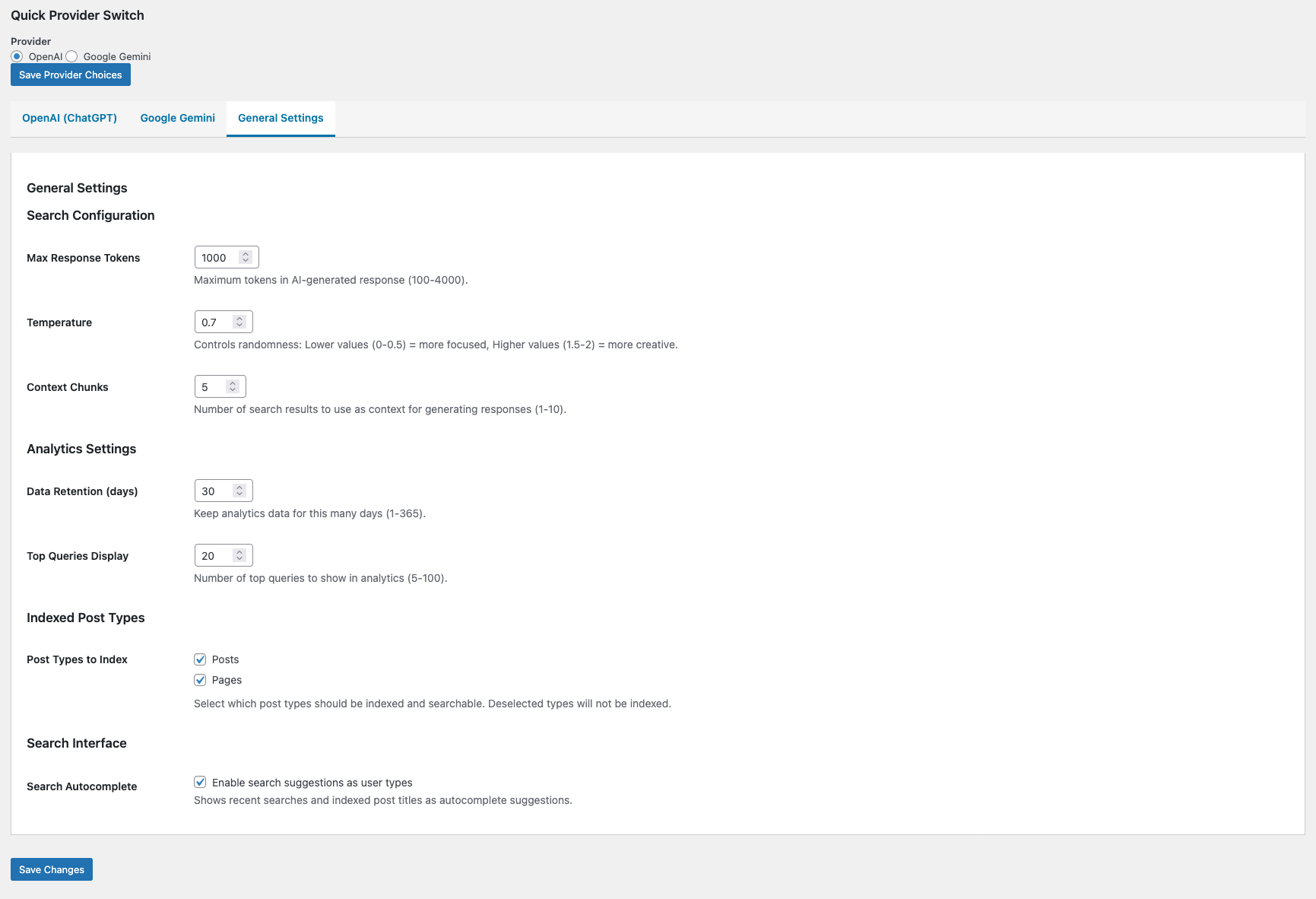
The General Settings panel is your starting point for configuring AI Search Pro. Here you’ll establish the core behavior of the AI-powered search functionality.
Available Options:
- Enable AI Search – Toggle the AI search feature on or off across your site
- AI Provider – Select between OpenAI or Google Gemini as your AI backend
- Search Mode – Choose between conversational AI answers or enhanced traditional results
- Response Length – Control the verbosity of AI-generated answers
- Fallback Behavior – Define what happens when AI can’t find relevant content
OpenAI Configuration
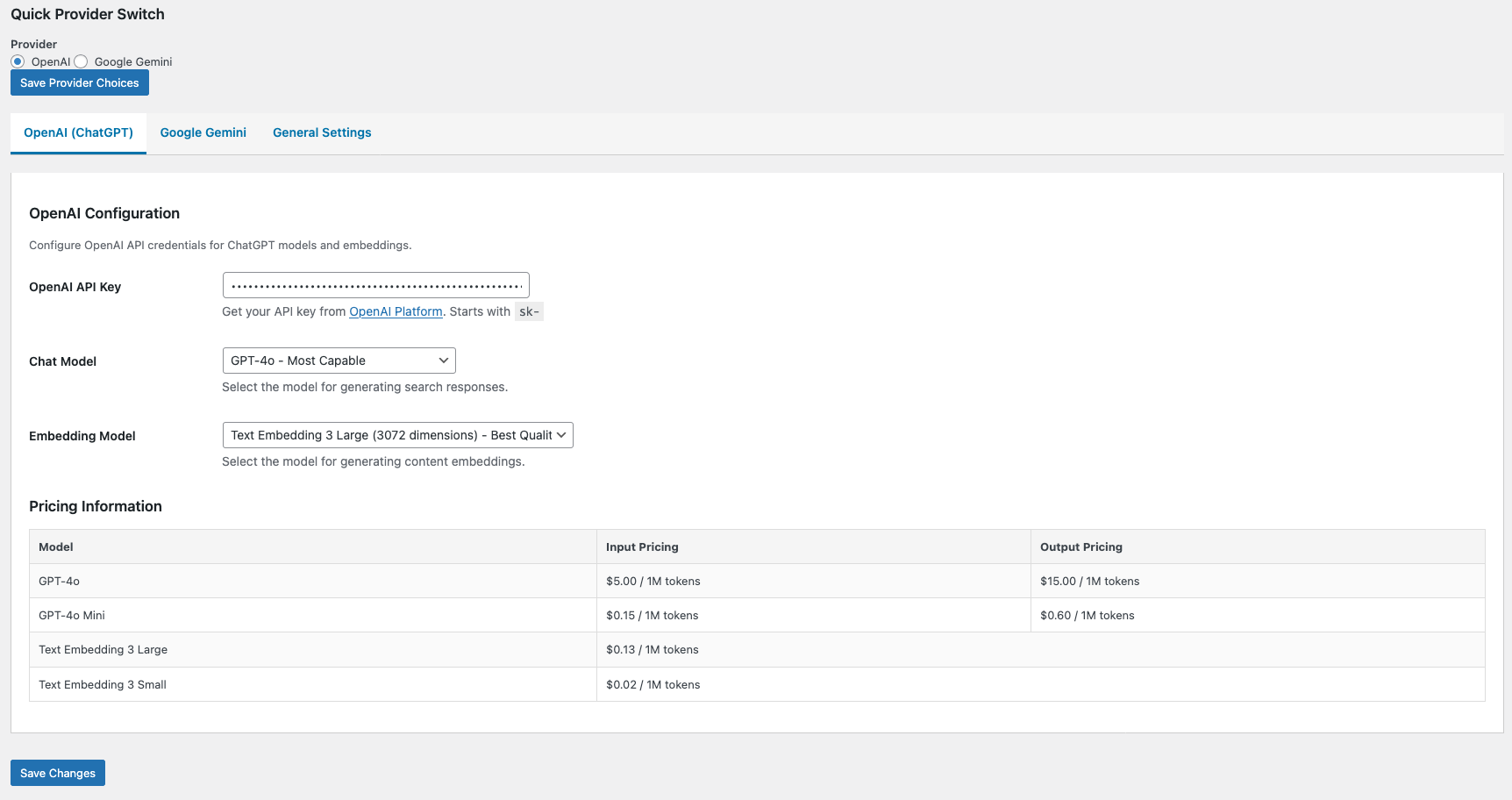
Configure your OpenAI integration to leverage GPT models for intelligent search responses. This panel handles authentication and model selection for OpenAI-powered searches.
Available Options:
- API Key – Enter your OpenAI API key (stored securely and encrypted)
- Model Selection – Choose from available GPT models (GPT-4o, GPT-4, GPT-3.5-turbo)
- Temperature – Adjust creativity vs. precision of responses (0.0-1.0)
- Max Tokens – Set the maximum length for AI responses
- Test Connection – Verify your API key is valid before saving
Google Gemini Configuration
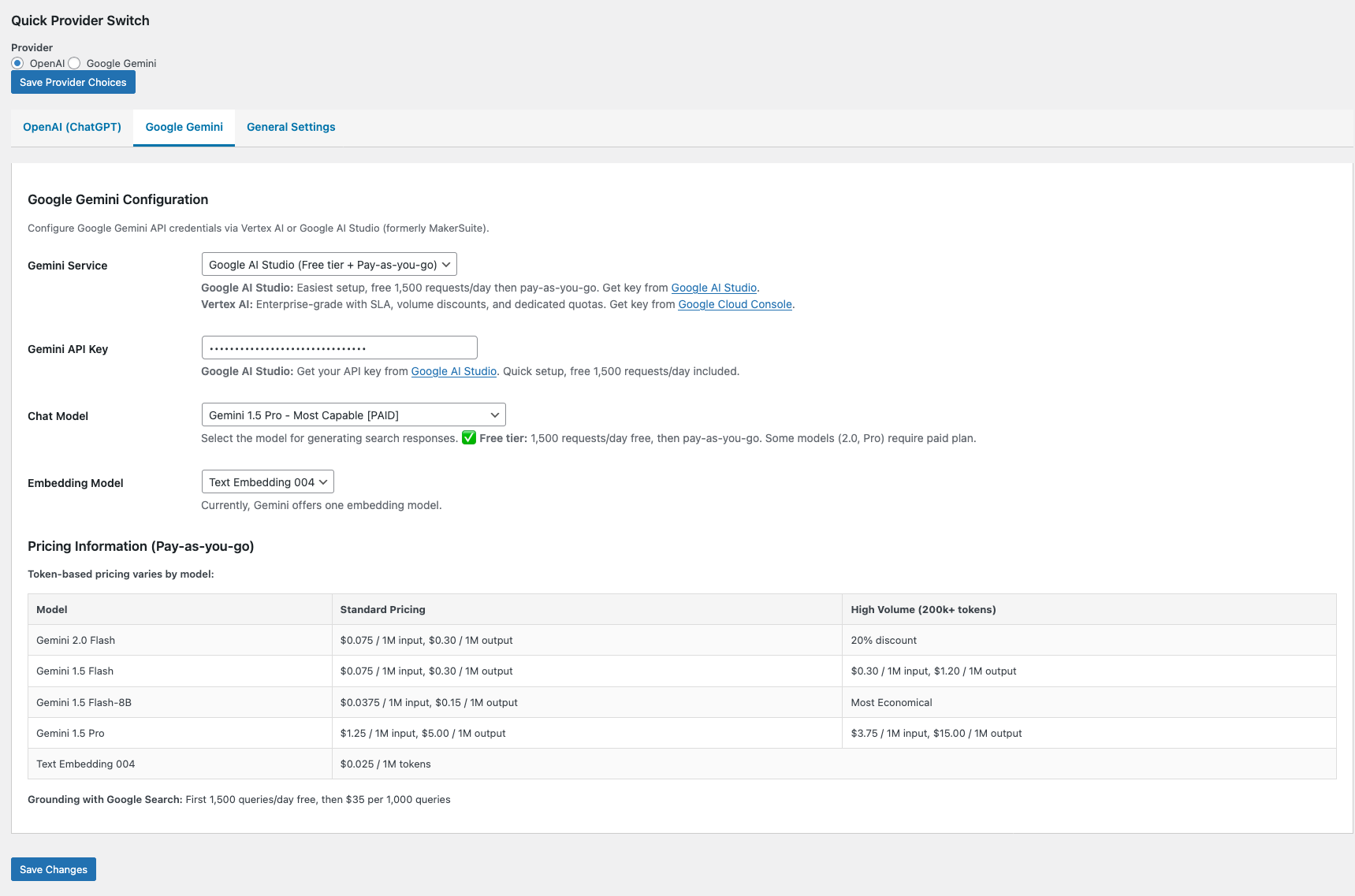
Set up Google Gemini as your AI provider for search functionality. Gemini offers competitive pricing and excellent performance for content-based queries.
Available Options:
- API Key – Enter your Google AI Studio API key
- Model Selection – Choose Gemini model variant (Gemini Pro, Gemini Pro Vision)
- Safety Settings – Configure content filtering thresholds
- Generation Config – Fine-tune response parameters
- Test Connection – Validate your Gemini API credentials
Analytics Dashboard
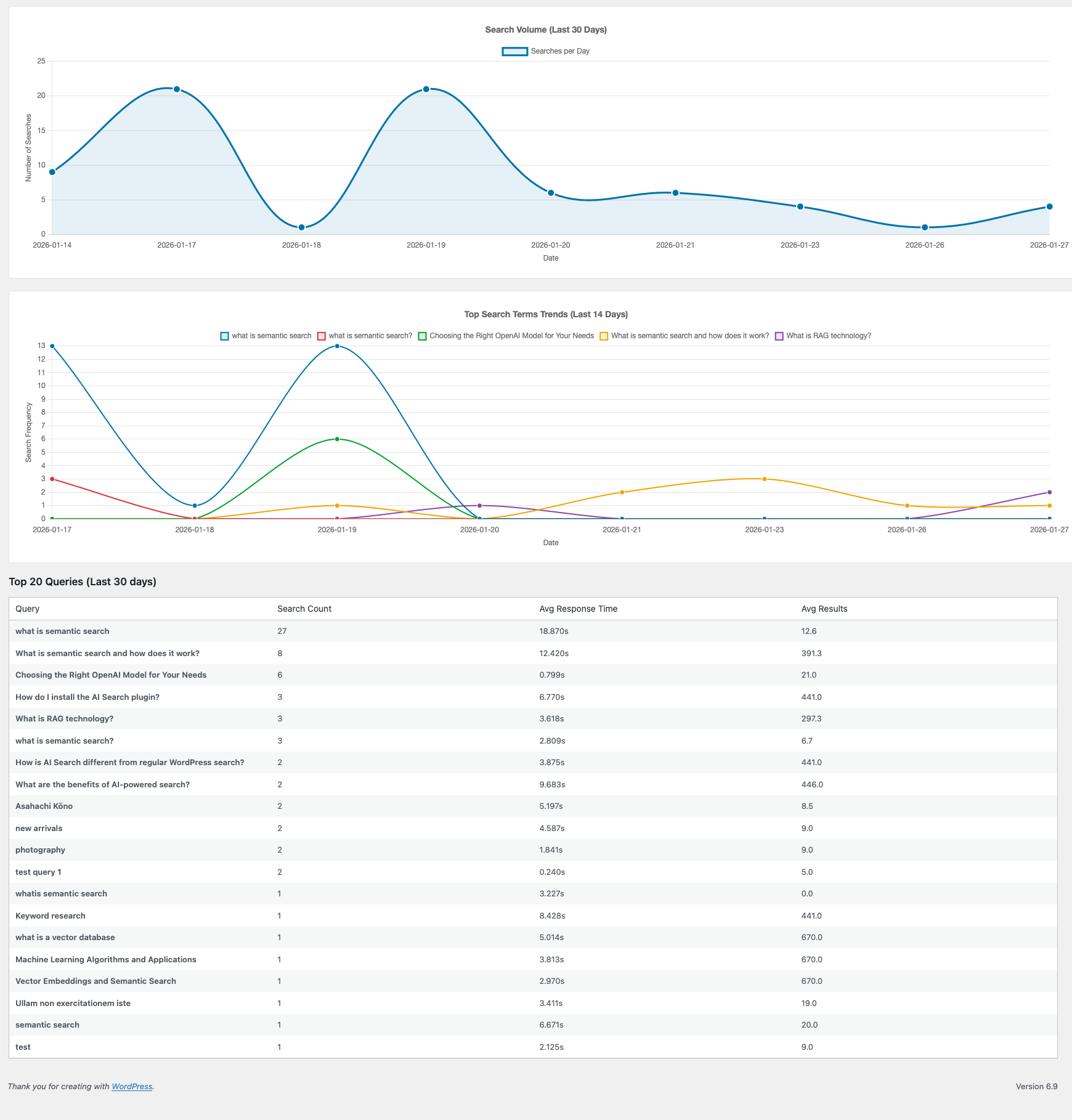
Monitor your AI search performance with detailed analytics. Track usage patterns, popular queries, and API costs to optimize your search experience.
Available Metrics:
- Total Searches – Track the number of AI-powered searches performed
- Popular Queries – View the most frequently searched terms
- API Usage & Costs – Monitor token consumption and estimated costs
- Response Times – Analyze average query processing speed
- User Satisfaction – Review feedback scores and click-through rates
- Date Filtering – View analytics for custom time periods
Content Indexing
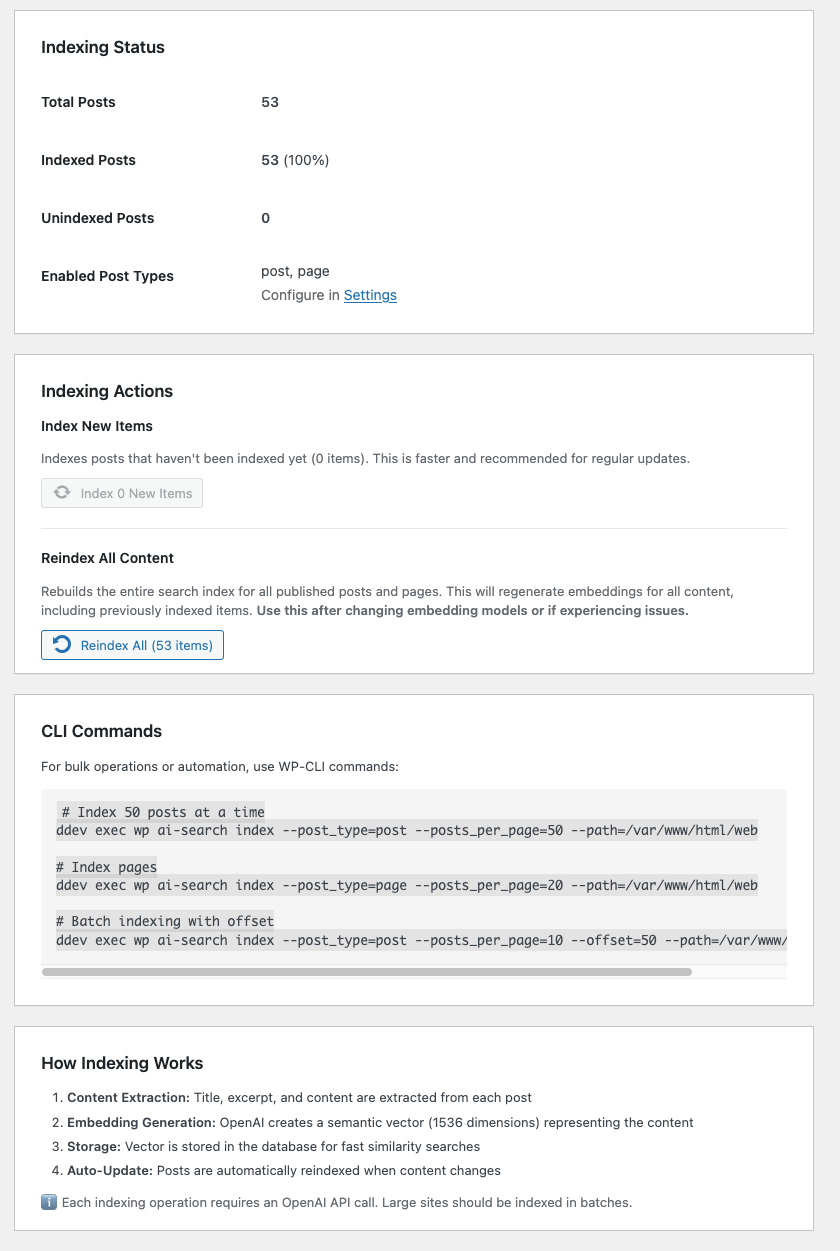
The Content Indexing panel controls how your site content is processed and stored for AI retrieval. Proper indexing is essential for accurate, relevant AI search responses.
Available Options:
- Post Types – Select which content types to include (posts, pages, custom types)
- Taxonomies – Include categories, tags, and custom taxonomies in the index
- Reindex Content – Manually trigger a full content reindex
- Auto-Index Schedule – Set automatic indexing frequency
- Exclusion Rules – Define content to exclude from indexing
- Index Status – View current index size and last update time
Quick Tips
Configure your API key first, then run an initial content index before testing AI search.
Use the Analytics dashboard to monitor API usage and set up alerts before reaching budget limits.
Ensure all relevant content types are indexed and keep your index updated for optimal AI responses.